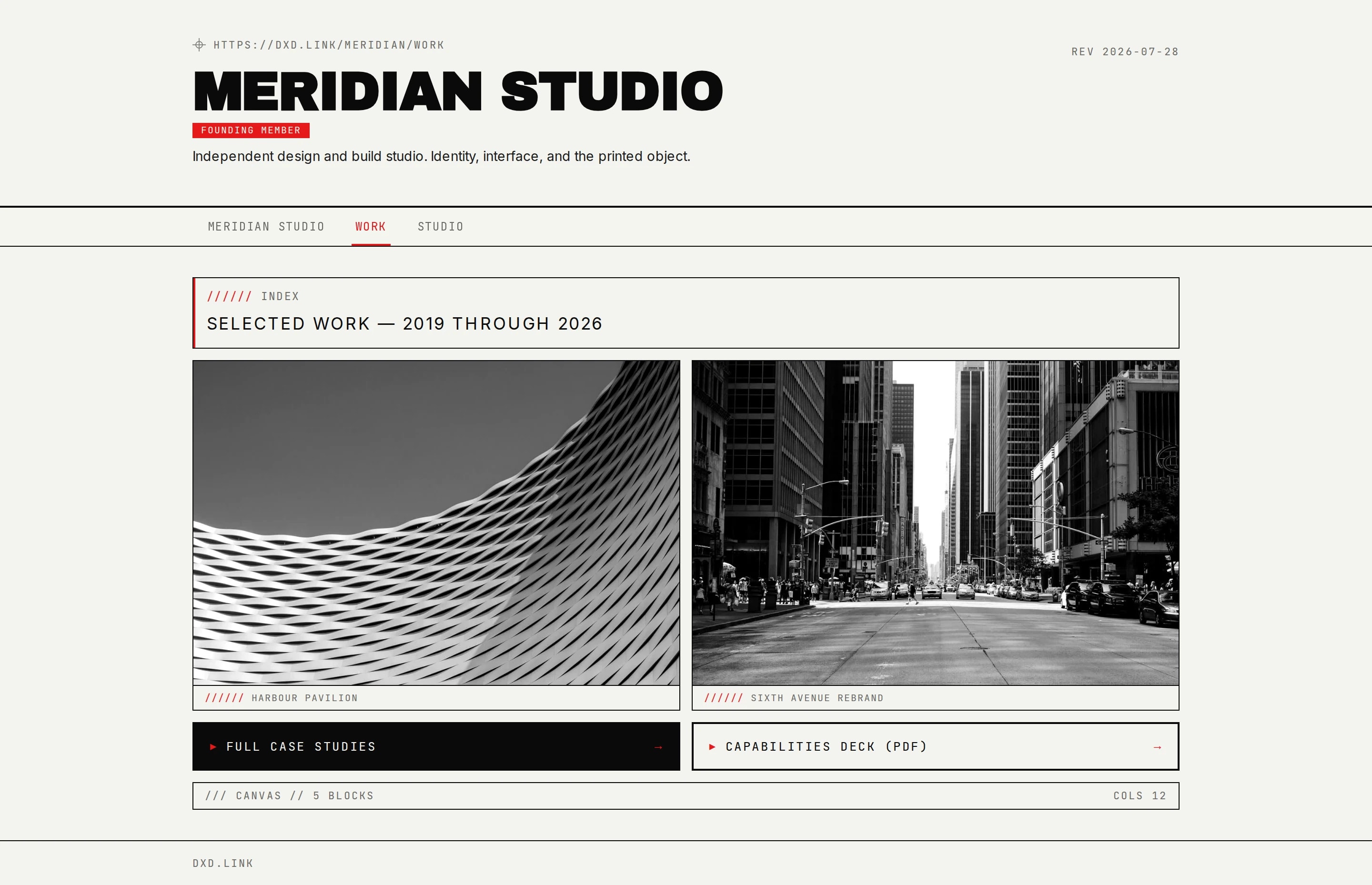
How it works
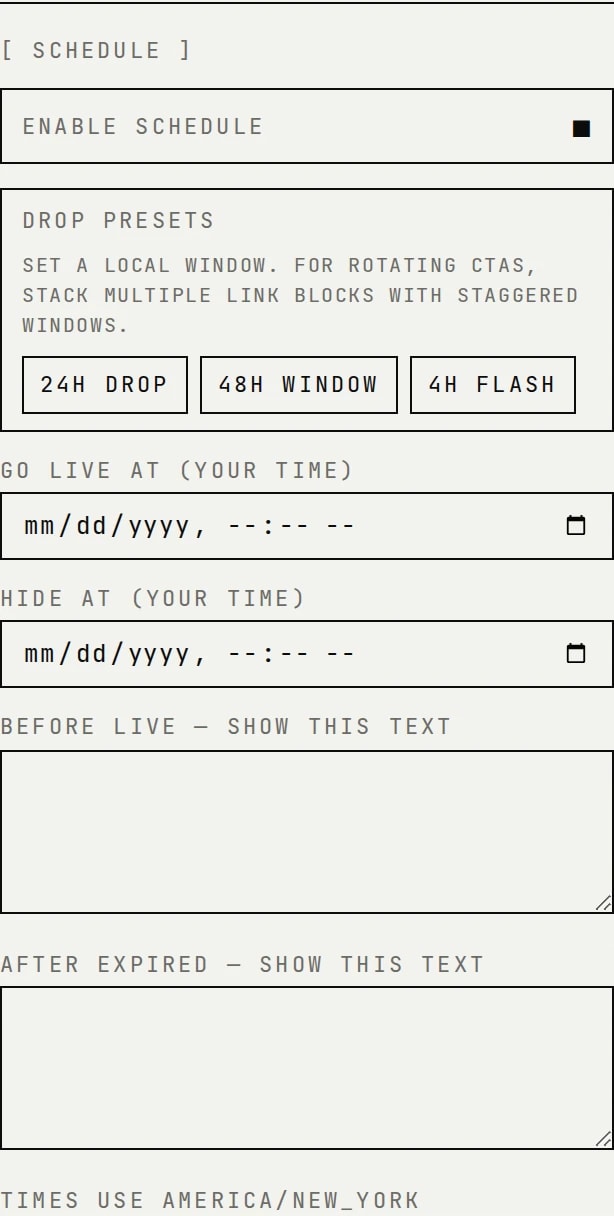
On Creator or Founding, open a block in the editor and set a schedule with your page timezone. The public page only shows the block while the window is active.
FIG.01 — THE SCHEDULE PANEL
| Manual bio edits | dxd.link scheduling | |
|---|---|---|
| Drop timing | Stay up late to swap links | Set go-live + expiry once |
| Timezone | Your local clock | Page timezone in Settings |
| Granularity | Whole page or link tool | Per-block on the canvas |
| Presets | N/A | 4h / 24h / 48h drop windows |
| Plan | Varies by tool | Creator / Founding |
Pair with tabs
Keep evergreen links on your main tab. Put drop CTAs on a Links or Personal tab and schedule them. Visitors who land mid-drop see the right action; everyone else sees a clean page.
FIG.02 — DROP ON A TAB